Processing Item Requests
At times, the technician may require items to complete a repair. The technician can raise a request for the items from the Technician Workstation (TWS) portal and the items are issued from the Process Item Requests section.
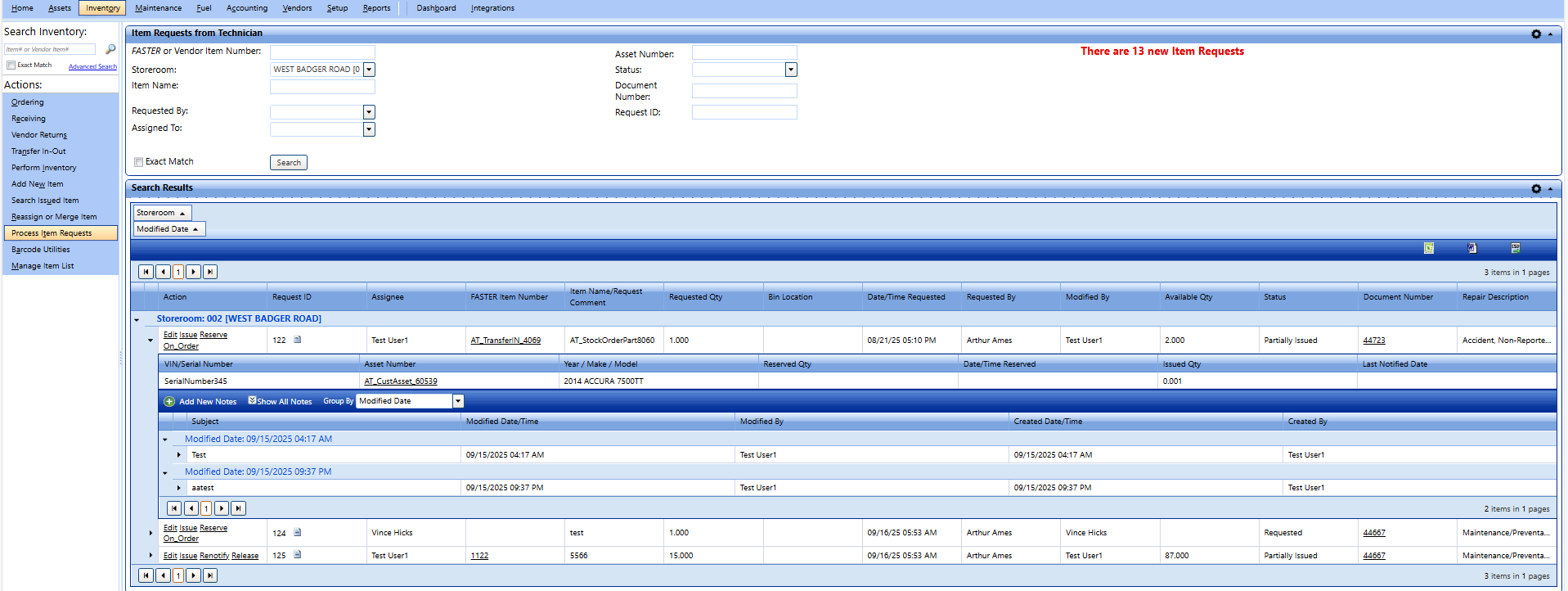
Item requests from technician
To process the item requests
- Click the Inventory module.
- In the Actions section, click Process Item Requests.
- In the Item Requests from Technician section, specify the following search parameters to view the item requested by the technician:
- In the FASTER or Vendor Item Number box, type the item number or the vendor item number.
- In the Storeroom list, select the storeroom of the item.
- In the Item Name box, type the name of the item.
- In the Requested By list, select the technician who has requested for an item.
- In the Asset Number box, type the unique number of the asset for which the item is requested.
- In the Status list, select the status of the requested item.
Note: You can search the item requests with one of the following status:
- Requested - Item request is raised by the technician.
- Issued - Item requested is issued to the technician.
- Partially Issued - Item requested is partially issued to the technician.
- Partially Reserved - Item request where a quantity of Item requested is partially reserved.
- Reserved - Item request where a quantity of Item requested is reserved.
- Canceled - Item requested by the technician is canceled.
- Parts Vendor Issued - Item request by the Inventory Import Utility (IIU) imported issue records.
- On Order - Item request status is changed to On Order.
-
In the Document Number box, type the work order number.
- In the Request ID box, type the item request id.
- In the Assigned to list, select the Person name.
- Select the Exact Match check box if you are sure that you have entered the correct text in the FASTER or Vendor Item Number, Item Name, Asset Number, Document Number or Request ID box.
- Click Search.
- The Search Results grid displays the items requested based on the search parameter with the following information for each item:
Note: By default, the search results are grouped by Storeroom. To group the search results with the desired column, you can move the column near the Storeroom by dragging the column heading.
- Request ID
- Assignee
- FASTER Item Number
- Item Name Request Comment
This column displays an item name or a request comment. - Requested Qty
- Bin Location
- Date/Time Requested
- Requested By
- Modified By
- Available Qty
- Status
- Document Number
- Repair Description
Move the pointer over a repair description to view the full description of a repair.
- The Search Results grid displays the items requested based on the search parameter with the following information for each item:
- In the Search Results grid, in the Action column, perform the following:
- Click Edit to modify the details of the item request.
- Click Issue to issue the item requested.
- Click Reserve to reserve the item requested.
- Click Release to undo the item reservation.
- Click Renotify to send message to technician on an item request made earlier.
- Click On Order to change status of the item request to On Order.
- Click Assign to assign an item to a person.
Note:
The Assignee feature for parts requests includes the following rules:
- If no one is assigned, any user can assign the request to themselves. Assigned users can unassign themselves without special permissions.
- Reassigning or unassigning another user’s request requires the Item Request Unassign User permission in Setup module, which can be configured by the Fleet Manager at the storeroom level (overrides domain-level settings).
- If a user lacks this permission, the Unassign link appears disabled. To prevent confusion when multiple technicians act on the same request, if a request has already been assigned, the system displays an “Already Assigned” pop-up with the technician’s name. Selecting OK automatically refreshes the grid and updates the assignee information.
- Click Add New Notes to add notes to the process item.
-
Navigation Tips:
- To expand or collapse the grids in the search window, click
 to the right of the title bars.
 - To move the grids in the search window, drag a grid to a desired location. To save the position of the grid, click the
 icon. The position of the grids will be the same next time you open the search window.
 - To sort the search results displayed in a column by any category, click the column header.
- To browse through the search results, use the arrows in the upper part or the lower part of the search result grid. You can also specify whether to display the entire search result or ten results at a time.
- If there are too may results to display, the search returns an error message as The search results exceed the maximum number of records allowed. Only the first ‘x’ records are being shown. Please refine your search criteria if the record for which you are searching is not in the list returned. You must narrow your search to display targeted results.
- To export the search results to a spreadsheet, word document, or CSV file, click the appropriate export link on the upper-right corner of the search results grid.
- To expand or collapse the grids in the search window, click
Exporting the Search Results Grid
You can export the information in a column in the following formats:
- Microsoft Excel (.xls)
- Microsoft Word (.doc)
To export the column information
- In the upper-right corner of the List of Columns grid, click the Microsoft Excel (
 ) or Microsoft Word (
 ).
).
The File Download dialog box opens prompting you to Open, Save, or Cancel. - Click Save.
The Save As dialog box is displayed with the File Type of the selected format. - Browse to the desired location, specify a file name, and then click Save.
The List of Columns grid is saved in the specified format at the specified location.