Add Notes
The Add Notes features allows users to add, Edit, delete, and view Notes on individual inventory item requests, to document and reference important requisition-related notes such as vendor issues or internal updates.
To Add Notes
- Search and view the item request.
- Click the
 icon before the process item to expand the item request.
 - The following information of the process item is displayed in the grid:
- VIN/Serial Number
- Asset Number
- Year / Make / Model
- Received Qty
- Date/Time Reserved
- Issued Qty
- Last Notified Date
- Click Add New Notes link. The Add Note page opens.
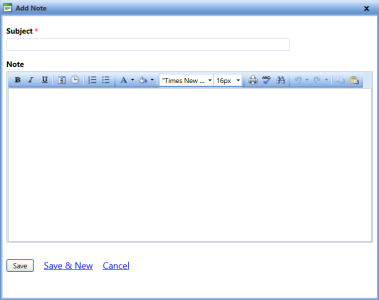
Add New Note - In the Subject box, type the subject of the notes.
- In the Note box, tye the note description.
- When finished, click one of the following:
- Save to save the information and close the dialog box.
- Save & New to save the Note and add a new note.
- Cancel to disregard any changes and close the dialog box.
To View Notes
- Search and view the item request.
- Click the icon before the process item to expand the item request.
The Notes will be listed in a grid.
- Click the icon before the Note to expand and view the notes.
To Edit Notes
- Search and view the item request.
- Click the icon before the process item to expand the item request.
The Notes will be listed in a grid.
- Click the icon before the Note to expand and view the notes.
- Click Edit Note link on the note. The Edit Note page opens.
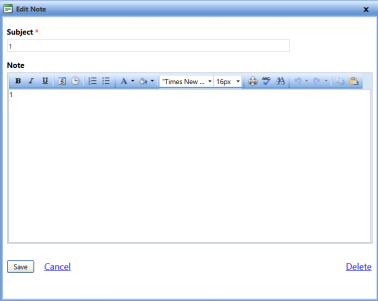
- Make the required changes and click one of the following:
- Save to save the Note.
- Cancel to disregard the changes and close the dialog box.
To Delete Notes
- Search and view the item request.
- Click the icon before the process item to expand the item request.
The Notes will be listed in a grid.
- Click the icon before the Note to expand and view the notes.
- Click Edit Note link on the note. The Edit Note page opens.
- Click Delete to delete. The Confirm Delete Note dialog box opens.
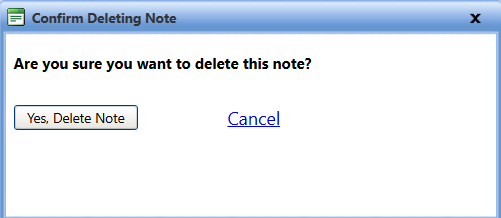
- Click one of the following:
- Yes, Delete Note to delete the note.
- Cancel to disregard the changes and close the dialog box.