Editing an Item Request
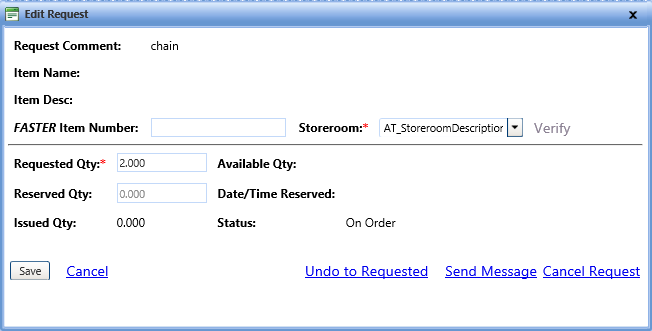
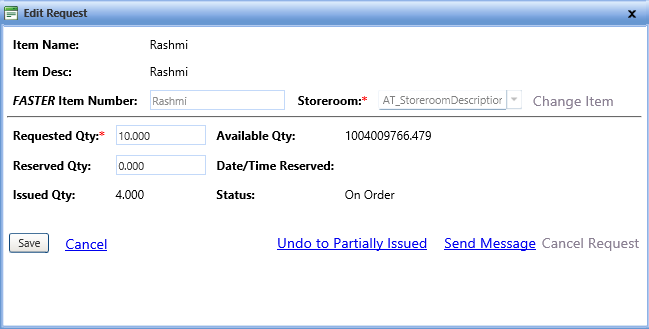
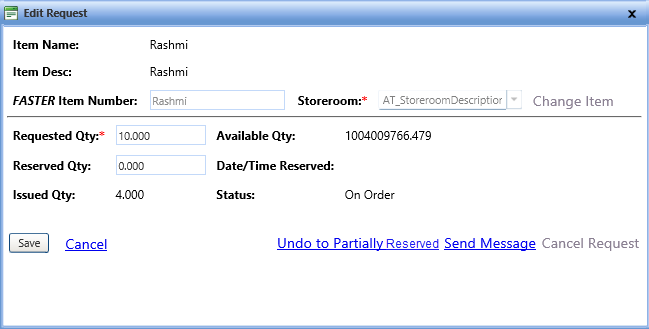
The Edit Request dialog box lets you modify the quantity of the item requested and quantity of the item reserved. It also lets you reset the item request status from On Order to its previous status using the Undo to <…> link; for more information, See below table.
The Undo to <...> link text changes based on the previous status of item request:
|
Previous Status |
Undo Link Name |
Example | |
| Requested |
Undo to Requested |
 |
|
|
Partially Issued |
Undo to Partially Issued |
 |
|
|
Partially Reserved |
Undo to Partially Reserved |
 |
|
| Assign | Unassign a User |
|
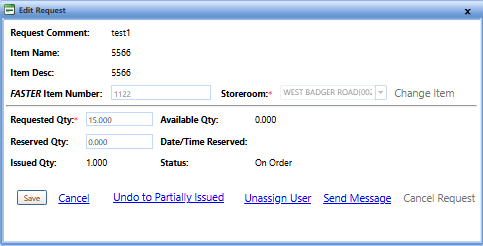
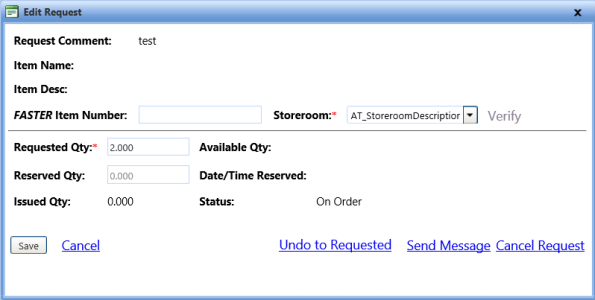
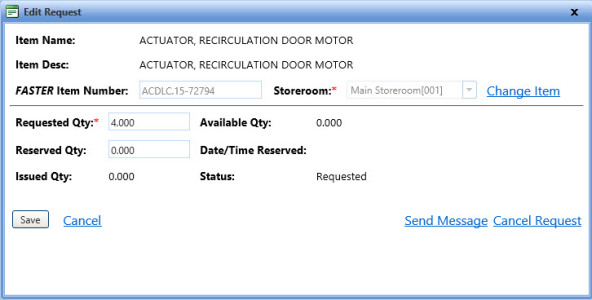
The Edit Request dialog box is displayed based on one of the following two requests:
- Item request (Request Comment) sent by a technician on its own
You can associate a request comment with the FASTER Item Number. - Item request associated with the FASTER Item Number
You can change a requested item with another item.
Edit request
Edit request
To edit an item request
- Search and view the item request.
- Click the Edit link next to an item request.
The Edit Request dialog box opens.Note: The Edit link is not displayed, if the request status is Issued, Canceled or Parts Vendor Issued.
- If the item request status is On Order, click Undo to <...> link to change it to the previous status. For more information, click here.
- If an item request is made by a technician on its own, specify the FASTER item details to associate the item request with the FASTER Item Number.
- In the FASTER Item Number box, type the item number.
- In the Storeroom list, select the storeroom in which the item exists.
- Click Verify.
Note: Both FASTER Item Number and Storeroom are required to verify the item number.
- One of the following occurs:
- If the item exists in the storeroom, the item name and description is displayed.
- If the item does not exists in FASTER Web, the Edit Request dialog box opens allowing you to add a non-stock item in FASTER Web. Click Add Non-stock Item to add an item.
Note: After an item is associated, the Verify link is changed to the Change Item link. Click the Change Item link if you want to change the FASTER Item Number and Storeroom. If an item is reserved or issued then the Change Item link is disabled.
- In the Requested Qty box, make the changes as desired.
- In the Reserved Qty box, type the quantity of the item that you want to reserve.
Note: If reserved quantity is increased then Reserve operation is performed, if it is decreased, then Release operation is performed.
- When finished, click one of the following:
- Save to save the information and close the dialog box.
- Cancel to disregard any changes and close the dialog box.
Note:
- Click the Send Message link to send a message to technician about item request.
- Click the Cancel Request link to cancel the item request. Click Undo to <...> link to change item status from on order to previous status.
Adding a Non-stock Item
You can add the details of a non-stock item in the Edit Request dialog box.
To add the non-stock item information
- In the Vendor Name list, select a vendor for the item.
- In the Invoice Number box, type the invoice number to receive the item.
- Click the Verify link to verify if the invoice number exists for the selected vendor.
- In the Invoice Date field, type the date of invoice in the MM/DD/YYYY HH:MM:SS AM/PM format, or select the date from the calendar.
- In the Ship to Location list, select a location to ship the item.
- In the Tax Code list, select a tax type.
The amount of tax charged on the part is based on the selected tax type.Note: If a default payment type is set for the vendor from Vendor Settings in the Setup module, the Payment Type and its related fields pre-populate with details. But if the default purchase order or credit card set for the vendor is expired, the purchase order or the credit card details do not pre-populate. Also, if a default payment type is not set for the vendor, the Payment Type list displays Existing Purchase Order by default.
-
In the Payment Type list, select a mode of payment to pay for the item.
- In the Invoice Total box, type the total amount of invoice.
- Based on the selected payment type, perform one of the following:
- If the payment type is Existing Purchase Order, perform the following:
- In the Purchase Order Number list, select the vendor's existing purchase order.
Note: The Purchase Order Number list does not display the purchase orders with a future start date.
- In the Budget Line Item Account Number list, select an account number for the purchase order.
- In the Purchase Order Number list, select the vendor's existing purchase order.
- If the payment type is New Purchase Order, perform the following:
- In the Purchase Order Number box, type a new purchase order number.
- In the Budget Line Item Account Number list, select an account number for the purchase order.
Note:
- You can also perform the following:
- In the Description box, type a brief description about the purchase order.
- Select the Set Budget Line Item as Purchase order Default check box, if you want the selected account number to be the default account for the new purchase order.
- If the Support System Default Account Code in the Accounting Settings section of the Setup module is set to Yes, the following options are set by default:
- The Budget Line Item Account Number list pre-populates the System Default Account option.
- The Set Budget Line Item as Purchase Order Default check box is selected.
- The Effective End Date is set to 12/31/3000.
However, you can make changes to the selected options, as required.
- You can also perform the following:
- In the Funded Amount box, type the total amount funded for the purchase order.
- In the Max Purchase Limit box, type the maximum amount that you can use for each transaction.
- In the Effective End Date field, type an end date for the purchase order in the MM/DD/YYYY format or select a date from the calendar.
- If the payment type is Credit Card, perform the following:
- In the Card Type list, select the type of the card.
- In the Last 4 digits box, type the last four digits of the credit card.
- In the Cardholder's Name box, type the name of the cardholder.
- Click Verify to validate the credit card details.
- In the Budget Line Item Account Number list, select an account number for the credit card.
- If the payment type is Existing Purchase Order, perform the following:
- In the Received Qty box, type the quantity of the item received.
- In the Unit Price box, type the price of the item.
Note: The Extended box displays the total price of the item.
- In the Shipping box, type the shipping cost of the item.
- In the Tax box, type the amount of tax to be charged on the item.
- In the Other Charge Type list, select the other charges to be applied on the item.
- In the Unit Price box, type the price of the other charge type.
Note:
- The UM box displays the unit of measurement assigned to the item by default.
- The Extended box displays the total cost of other charges applied on the item.
-
In the Tax box, type the amount of tax to be charged on other charges.
- The Item Number box displays the item number. Optionally, type a different item number.
- The Storeroom list displays the item storeroom. Optionally, select a different item storeroom.
- In the Item Name box, type the item name.
- In the Item Type list, select the item type.
- In the Item Category list, select a category of the item.
- In the Warranty Length and Cycle fields, type and select the length and duration of the warranty, respectively.
You can add the date warranty and the meter warranty.Note: Warranty cycle is based on the warranty length selected. For example, to set a warranty period of 1 year, type 1 in the Warranty Length box and select year in the Warranty Cycle list.
- When finished, click one of the following:
- Add Non-stock Item & Continue to add the item record and move to the next step.
- Cancel to disregard any changes and close the dialog box.