Issuing an Item Request
The Issue an Item dialog box lets you issue the items requested by the technician. You can issue all the items or partially issue the items requested by the technician. You can issue an item when the status of an item request is Requested, Partially Issued, Partially Reserved, or Reserved.
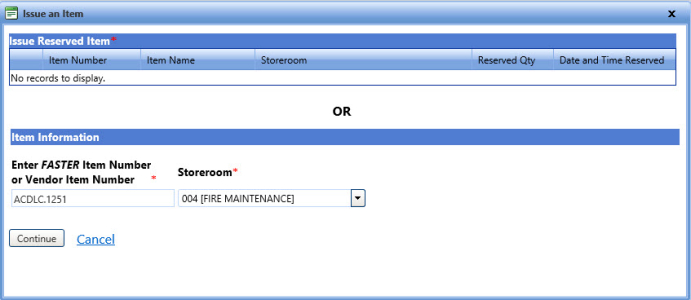
Issue an item
To issue an item request
- Search and view the item request.
- Click the Issue link in an item request.
The Issue an Item dialog box opens. - Perform one of the following:
- Select the check box in the Issue Reserved Item section to issue the reserved item quantity. For more information about item reservation, refer to Reserving an Item Request.
Note: If there is an item reserved for the request, then the check box of the reserved item is selected by default.
-
Confirm the FASTER item number or the vendor item number and storeroom in the Enter FASTER Item Number or Vendor Item Number box and Storeroom list, respectively.
Note: The system automatically releases the reserved item quantity, only if the item is completely issued from the inventory and not from the reserved stock.
- Select the check box in the Issue Reserved Item section to issue the reserved item quantity. For more information about item reservation, refer to Reserving an Item Request.
- Click Continue.
Note: If the item does not exists in FASTER Web, the Edit Request dialog box opens allowing you to add a non-stock item in FASTER Web. Click Add Non-stock Item to add an item.
- In the Issue Quantity box, type the quantity of the item you want to issue.
Note: You cannot issue an item quantity greater than the item requested by the technician.
- The Issue Date field displays the current date and time. Optionally, type the date and time of item issue in the MM/DD/YYYY HH:MM:SS AM/PM format, or select the date from the calendar and time from the clock.
Note: The Select the repair that applies to this issue section displays the repairs in the work order. The repair for which you want to issue items is selected by default in the Select the repair that applies to this issue section. You can also select a different repair to issue items for the repair.
- When finished, click one of the following:
- Click Issue Item to approve the item request.
Note: If a request is not associated with an item, then the issue operation associates the request with an item.
- Click Cancel to disregard any changes and close the dialog box.