Assign An Item
Click here to see this page in full context


  1. Home |
  2. Inventory |
  3. Processing Item Requests |
  4. Assign An Item


Assign an Item

The Add Notes featuadd , Edit, delete and view Notes on individual inventory item requests,
So that I can document and reference important requisition-related notes such as vendor issues or internal updates.


Note: 

  • The Assign link is only visible when the request is unassigned.
    Assign link visible
  • The Assign link will be visible for the below request status:

    • Requested

    • Partially Issued

    • Partially Reserved

    • Reserved

    • On Order

  • The Assign link will not be visible for the below request status:

    • Issued

    • Canceled

    • Parts Vendor Issued

    • Cancel Request

    • Return Request

  • If a user is already assigned to the request, the Assign link will not be displayed.
    No Assign link

To assign an item request

  1. Search and view the item request.
  2. Click the Assign link in an item request.
    The item will be assigned to the person associated to the logged in user in Assignee column.


To unassign an item request

  1. Search and view the item request.
  2. Click the Edit link in an item request.
    The Edit Request page opens.
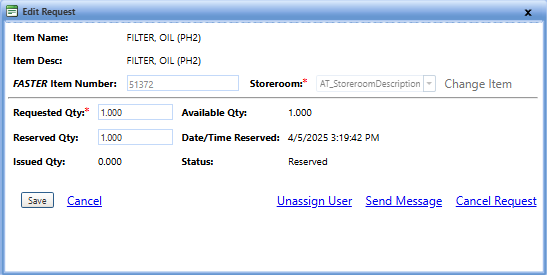
    Edit Request
  3. Click the Unassign User link.
    The Confirm Unassign User confirmation message window opens.
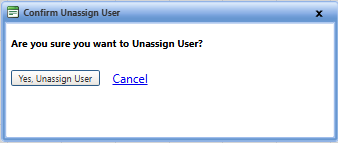
    Confirm Unassign User
    1. Click Yes, Unassign User to unassign the assigned user.
    2. Click Cancel to disregard changes.


Copyright © 2009 – 2025 FASTER Asset Solutions. All Rights Reserved.

