Renotifying the Technician
The Renotify link lets you send a message to the technician about the item reservation that is made earlier.
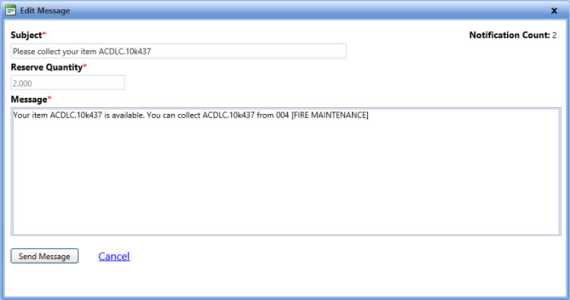
Edit message
To renotify the technician
- Search and view the item request.
- Click the Renotify link in an item request.
The Edit message dialog box opens. - Modify the message as desired and click one of the following:
- Send Message to send the message to the technician.
- Cancel to disregard any changes and close the dialog box.
Note: Notification Count displays the number of message notifications being sent to the technician.