Physical Inventory Count
The Physical Inventory Count page lets you adjust the quantity of items available in your storeroom after performing a physical count of the items. You can adjust the quantity of items by entering the new count value. Using multiple search options, you can search and perform physical inventory count on a range of items available in a storeroom.
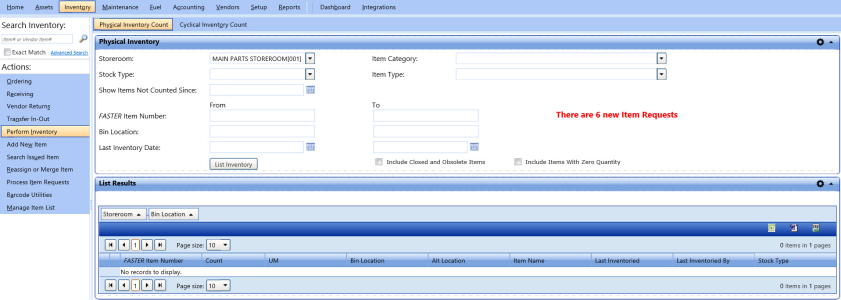
Physical inventory count
To perform a physical inventory count
- Click the Inventory module.
- In the Actions section, click Perform Inventory.
The Physical Inventory Count page opens. - In the Physical Inventory section, specify the following search parameters to search for the items whose inventory count is performed:
- In the Storeroom list, select the storeroom.
- In the Item Category list, select the item category.
- In the Stock Type list, select the stock type.
- In the Show items not counted since box, type or select the date from the calendar to display a list of items that are not counted from the selected date.
Note: This date must be less than or equal to the current date.
- In the Item Type list, select the item type.
- In the FASTER Item Number From and To boxes, type a range of item numbers.
- In the Bin Location boxes, type a range of the item bin location.
- In the Last Inventory Date box, type the date of last inventory count in the MM/DD/YYYY format, or select the date from the calendar.
- Select the Include Closed and Obsolete Items check box to view the items that are closed or are made obsolete.
- Select the Include Items With Zero Quantity check box to also display items that are not in stock.
- Click List Inventory.
The List Results grid displays the items searched based on the specified search parameters. - In the Count column, type the quantity of the item based on the physical inventory count performed.
- Click the Process Counts Entered link.
Note: If there is a variance in the existing quantity of an item and the current quantity counted, a message is displayed below the List Grid section. Click the Edit link to correct the item quantity or enter a reason to adjust the item quantity.
Navigation Tips:
- To expand or collapse the grids in the search window, click
 to the right of the title bars.
 - To move the grids in the search window, drag a grid to a desired location. To save the position of the grid, click the
 icon. The position of the grids will be the same next time you open the search window.
 - To sort the search results displayed in a column by any category, click the column header.
- To browse through the search results, use the arrows in the upper part or the lower part of the search result grid. You can also specify whether to display the entire search result or ten results at a time.
- If there are too may results to display, the search returns an error message as The search results exceed the maximum number of records allowed. Only the first ‘x’ records are being shown. Please refine your search criteria if the record for which you are searching is not in the list returned. You must narrow your search to display targeted results.
- To export the search results to a spreadsheet, word document, or CSV file, click the appropriate export link on the upper-right corner of the search results grid.
- To expand or collapse the grids in the search window, click
Exporting the Search Results Grid
You can export the information in a column in the following formats:
- Microsoft Excel (.xls)
- Microsoft Word (.doc)
To export the column information
- In the upper-right corner of the List of Columns grid, click the Microsoft Excel (
 ) or Microsoft Word (
 ).
).
The File Download dialog box opens prompting you to Open, Save, or Cancel. - Click Save.
The Save As dialog box is displayed with the File Type of the selected format. - Browse to the desired location, specify a file name, and then click Save.
The List of Columns grid is saved in the specified format at the specified location.