Searching an Order
The Advanced Search Options - Inventory Ordering section lets you search for the existing item orders based on the multiple search options available. You can further click the View link next to an order to add new items to the order, edit, finish, and cancel the order.
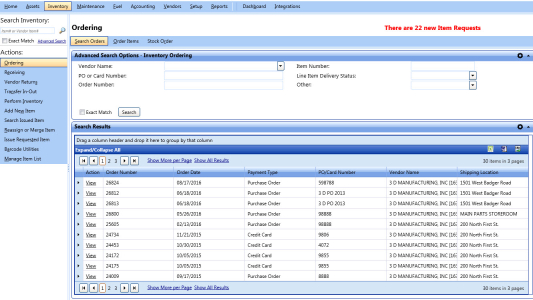
Advanced search options - inventory ordering
To search a inventory order
- Click the Inventory module.
- In the Actions section, click Ordering > Search Orders.
- In the Advanced Search Options - Inventory Ordering section, specify the following search parameters:
- In the Vendor Name list, select the vendor from whom the item is ordered.
- In the PO or Card Number box, type the purchase order number or the credit card number.
- In the Order Number box, type the item order number.
- In the Item Number box, type the item number.
- In the Line Item Delivery Status list, select the delivery status of the line item.
- In the Other list, select a parameter based on which you want to search the item order.
- Select the Exact Match check box if you are sure that you have entered the correct text in the Order Number, PO or Card Number, or Item Number boxes.
- Click Search.
The Search Results grid displays the items orders along with the following information:- Order Number
- Order Date
- Payment Type
- PO/Card Number
- Vendor Name
- Shipping Location
- In the Action column, click View next to the order you want to view.
|
Navigation Tips:
|


Exporting the Search Results Grid
You can export the information in a column in the following formats:
- Microsoft Excel (.xls)
- Microsoft Word (.doc)
To export the column information
- In the upper-right corner of the List of Columns grid, click the Microsoft Excel (
 ) or Microsoft Word (
 ).
).
The File Download dialog box opens prompting you to Open, Save, or Cancel. - Click Save.
The Save As dialog box is displayed with the File Type of the selected format. - Browse to the desired location, specify a file name, and then click Save.
The List of Columns grid is saved in the specified format at the specified location.