Barcode Field Print
The Barcode Field Print lets you print barcodes irrespective of any item in the inventory.
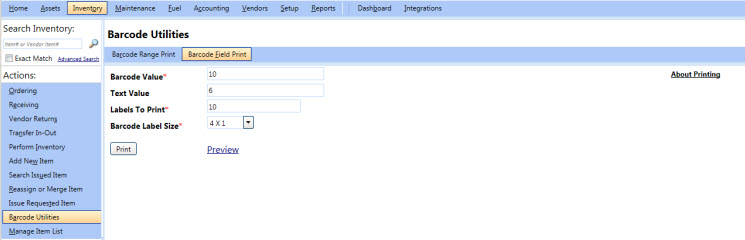
Barcode field print
To perform a barcode field print
- Click the Inventory module.
- In the Actions section, click Barcode Utilities.
The Barcode Range Print page opens. - Click Barcode Field Print.
- In the Barcode Value box, type the barcode value that you want to print.
Note: The entered Barcode Value will be encoded in the barcode.
- In the Text Value box, type the value that displays below the barcode.
- In the Labels To Print box, type the number of barcodes that you want to print.
- In the Barcode Label Size list, select the size of the paper on which you want to print the barcode.
Note:
- FASTER Web supports barcode label sizes 4 X1 and 4 X 2.
- Click the Preview link to preview the barcode label.
- Click the About Printing link on the top-right corner of the page for information about printing barcodes.
- Click the Print button.
The print dialog box specific to your computer is displayed to perform the print operation.